Calculator Training - Casio FX-991DE X
Mastering Your Calculator for Sections 1-5
Introduction
Welcome to Calculator Training!
Your Casio FX-991DE X is a powerful tool
- Today we’ll learn how to use it efficiently for the topics in Sections 1-5
- The calculator can verify your manual work and speed up calculations
. . .
This session is organized into 5 parts matching the course sections you’ve completed.
. . .
Important: Exams often require you to show your work, so use the calculator to check, not replace understanding
Session Structure
| Part | Section | Topics |
|---|---|---|
| 1 | Mathematical Foundations | Fractions, powers, roots, logarithms |
| 2 | Equations | Polynomial solver, systems of equations |
| 3 | Functions | f(x)/g(x), value tables |
| 4 | Advanced Functions | Exponential, trigonometric |
| 5 | Differential Calculus | Derivatives |
Getting to Know Your Calculator
The MENU Screen
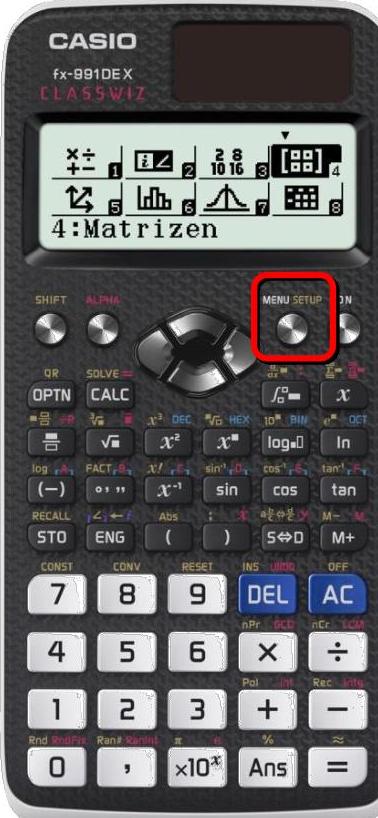
- Press MENU to see all applications
- Use arrow keys to navigate the icon grid, press number or = to select
- 1: Berechnungen (Calculate) is your main mode
Essential Settings
Before we begin, let’s configure the calculator:
- Press SHIFT MENU (Setup)
- Select 1: Eingabe/Ausgabe → 1: Math –> Math for natural display
- Select 2: Winkeleinheit → 1: Gradmaß (D) for degrees

. . .
The natural display mode shows fractions and roots as you write them on paper!
Menu Navigation
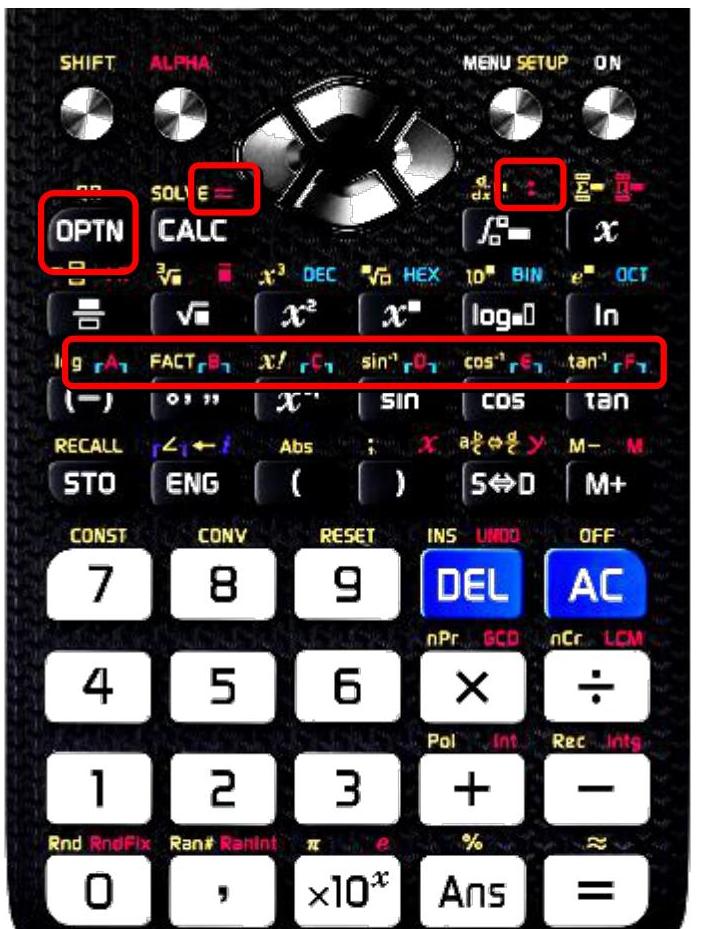
- Use SHIFT + template keys for calculus (d/dx, Σ, Π)
- Press MENU then navigate with arrow keys or press A for Gleichung/Funkt
- CALC button for evaluating expressions with variables
Part 1: Mathematical Foundations
Connecting to Section 01
In Section 01, you learned:
- Number systems and set theory
- Order of operations and exponents
- Advanced factorization and radicals
- Logarithms and algebraic substitution
. . .
Now let’s see how your calculator handles these!
Entering Fractions
Two ways to enter fractions:
Mixed fraction: \(3\frac{1}{2}\)
- Press SHIFT + fraction key (for mixed fraction template)
- Enter:
3 → 1 → 2
Improper fraction: \(\frac{7}{2}\)
- Press fraction key
- Enter:
7 → 2
. . .
Use the arrow keys to move between numerator and denominator fields.
Fraction Calculations
Example: Calculate \(\frac{2}{3} + 1\frac{1}{2}\)
. . .

. . .
Result: \(\frac{13}{6}\)
. . .
To convert between improper and mixed fractions:
. . .
- Press S <-> D for conversion
. . .
So far, nothing is really new, right?
Calculation History
A time-saving feature:
- Press ↑ (up arrow) to recall your previous calculation
- Edit the expression and press = to recalculate
- Navigate through multiple previous calculations with ↑ and ↓
. . .
This is very useful when you made a small mistake or want to try different values!
. . .
This only works as long as you don’t click the ON button, change the computation mode, or reset the data!
Percentage Calculations
Using the percent function:
Press SHIFT then ANS to access percentage calculations.
. . .
Example: What is 15% of 240?
. . .
Enter: 240 × 15 SHIFT ANS =
. . .
Result: 36
. . .
Example: Increase 200 by 8%
. . .
Enter: 200 + 200 × 8 SHIFT ANS =
. . .
Result: 216
. . .
You can always just use 0.08 for 8% as well!
Powers and Roots
Powers and roots can also be easily computed using a calculator:
. . .
Example 1: Calculate \(5^3 + \sqrt[4]{16}\)
. . .
Enter: 5 ^ 3 + SHIFT x^ 4 → 16 =
. . .
Result: 127
. . .
Example 2: Calculate \((2^3 + \sqrt[3]{27}) \times \sqrt[5]{32}\)
. . .
Enter: ( 2 ^ 3 + SHIFT x^ 3 → 27 ) × SHIFT x^ 5 → 32 =
. . .
Result: 128
Scientific Notation
For very large or small numbers:
Use the ×10ˣ button to enter scientific notation.
. . .
Example 1: Enter \(6.022 \times 10^{23}\)
. . .
Enter: 6.022 10ˣ 23 =
. . .
Example 2: Calculate \(\frac{1.5 \times 10^8}{3 \times 10^4}\)
. . .
Enter: 1.5 10ˣ 8 ÷ 3 10ˣ 4 =
. . .
Result: \(5 \times 10^3 = 5000\)
Logarithms
Your calculator handles all three logarithm types:
| Function | Access |
|---|---|
| \(\log_{10}(x)\) | SHIFT + (-) button |
| \(\ln(x)\) | ln button |
| \(\log_a(b)\) | log (log button) |
. . .
Example: Calculate \(\log_2(32)\)
. . .
Enter: log 2 → 32 =
. . .
Result: 5 (because \(2^5 = 32\))
Memory Variables
Store values for repeated use:
- Variables available: A, B, C, D, E, F, x, y, M
- Store: Enter value, press STO, then variable letter (no shift/alpha)
- Recall: Press ALPHA + variable letter
. . .
Example: Store 3.14159 in A
- Enter
3.14159 → STO → A - Use later:
2 × ALPHA A =gives 6.28318
. . .
Ans automatically stores your last result!
Prime Factorization (FACT)
Factor integers into prime factors:
- Enter a positive integer and press =
- Press SHIFT + FACT
. . .
Example: Find the prime factorization of 84
. . .
- Enter:
84 =then SHIFT + FACT - Result: \(2^2 \times 3 \times 7\)
. . .
Works for integers up to 10 digits. Useful for simplifying fractions!
GCD and LCM
Greatest Common Divisor and Least Common Multiple:
Access GCD and LCM functions via ALPHA + * or ALPHA + /.
| Function | Syntax | Example |
|---|---|---|
| GCD | GCD(a; b) | GCD(24; 36) = 12 |
| LCM | LCM(a; b) | LCM(24; 36) = 72 |
. . .
Example: Find GCD(48, 180)
. . .
- Enter:
ALPHA+*thenGCD(48; 180) = - Result: 12
. . .
Useful for simplifying fractions: \(\frac{48}{180} = \frac{48 \div 12}{180 \div 12} = \frac{4}{15}\)
Practice: Part 1
Try these on your calculator:
Calculate: \(\frac{5}{8} + \frac{3}{4} - \frac{1}{2}\)
Evaluate: \(\sqrt{144} + 3^4 - 2^5\)
Find: \(\log(1000) + \ln(e^2)\)
Verify: \(\log_3(81) = 4\)
Find the prime factorization of 360
Calculate GCD(72, 120) and LCM(72, 120)
Use CALC to evaluate \(2x^2 + 3x - 5\) for \(x = 4\)
Part 2: Equations & Problem-Solving
Connecting to Section 02
In Section 02, you learned to solve:
- Linear equations and word problems
- Systems of linear equations
- Quadratic and biquadratic equations
- Fractional, radical, and cubic equations
. . .
The calculator has powerful equation-solving modes!
Accessing the Equation Solver
From MENU:
- Press MENU → A (Gleichung/Funkt)
- Choose your equation type:
- 1: Gleichungssyst. = Systems of linear equations
- 2: Polynom-Gleich. = Polynomial equations
Solving Quadratic Equations
Solve \(x^2 + 2x - 2 = 0\)
- Press MENU → A → 2 (Polynom-Gleich.)
- Select Grad: 2
- Enter coefficients: a = 1, b = 2, c = -2
- Press = to see solutions
Interpreting Polynomial Solutions
The calculator shows:
- \(x_1 = -1 + \sqrt{3}\)
- \(x_2 = -1 - \sqrt{3}\)
Press = repeatedly to cycle through all solutions.
. . .
After the two x-values, it also shows you the vertex!
Solving Systems of Equations
Solve the system:
\[\begin{cases} x - y + z = 2 \\ x + y - z = 0 \\ -x + y + z = 4 \end{cases}\]
Press MENU → A → 1 → 3 Unbekannte
Enter coefficients in matrix form!
Press = for solution: \(x=1, y=2, z=3\)
2×2 Systems: Market Equilibrium
From Section 02: Find equilibrium where supply equals demand
\[\begin{aligned} Q_d &= 100 - 2P \quad \text{(Demand)} \\ Q_s &= 20 + 3P \quad \text{(Supply)} \end{aligned}\]
. . .
Rewrite as system: \[\begin{cases} Q + 2P = 100 \\ Q - 3P = 20 \end{cases}\]
. . .
Calculator solution: \(P = 16\), \(Q = 68\)
The SOLVE Function I
Newton’s method for solving any equation:
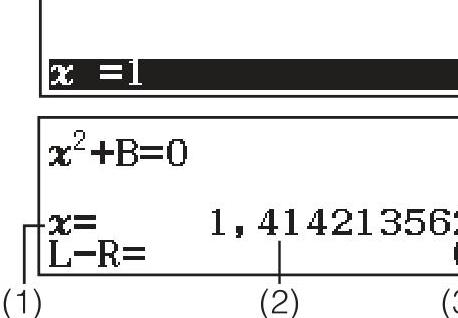
SOLVE (accessed via SHIFT + CALC) uses Newton’s approximation method to find solutions.
. . .
- Enter an equation (e.g.,
x² + B = 0) - Press SHIFT + CALC (SOLVE)
- Enter an initial guess for x and values for other variables
- Press = to find the solution
The SOLVE Function II
Newton’s method for solving any equation:
Example: Solve \(x^2 - 2 = 0\) (find \(\sqrt{2}\))
- Enter:
ALPHA x² - 2→ SHIFT CALC → initial guess:1 = - Result: \(x = 1.414213562\) (which is \(\sqrt{2}\))
. . .
SOLVE uses numerical methods, so:
- Results depend on your initial guess
- Multiple solutions require different starting points
- The closer your guess, the faster and more reliable the result
Practice: Part 2
Try these equation problems:
Solve: \(x^2 - 5x + 6 = 0\)
Solve: \(2x^2 + 3x - 5 = 0\)
Solve the system: \[\begin{cases} 3x + 2y = 18 \\ x - y = 1 \end{cases}\]
Find break-even: \(P(x) = -x^2 + 10x - 16 = 0\)
Use SOLVE to find where \(x^3 - 5x + 3 = 0\) (start with \(x = 1\))
Break - 10 Minutes
Part 3: Functions as Business Models
Connecting to Section 03
In Section 03, you learned:
- Function concepts and notation \(f(x)\)
- Linear functions and break-even analysis
- Quadratic functions and optimization
- Function transformations
. . .
Your calculator can store and evaluate function definitions!
Defining f(x) and g(x)
Register a function for repeated use:
- Press MENU → 9 (Tabellen)
- Enter your function expression for \(f(x)\)
- You can also define a second function \(g(x)\)
- Press = to continue to table settings
. . .
Once defined in Tabellen mode, the function is stored for evaluation.
Evaluating Functions
Once f(x) is defined in Tabellen mode:
The calculator generates a table showing function values:
- Set Start, Ende, and Inkre to define x-values
- The table displays both x and f(x) values
. . .
Example: \(f(x) = x^2 - 4x + 3\)
- Try to compute f(x) from x=0 to x=3 with step 1
- What can you see?
. . .
This helps verify zeros and critical points!
Composite Functions
Evaluating composite functions step-by-step:
. . .
For \(f(g(x))\), work from inside out:
- First calculate \(g(x)\) at your value
- Then use that result in \(f(x)\)
. . .
Example: \(f(x) = 2x + 1\), \(g(x) = x^2\)
. . .
- To find \(f(g(3))\):
- \(g(3) = 3^2 = 9\)
- \(f(9) = 2(9) + 1 = 19\)
Practice: Part 3
Try these function exercises:
Define \(f(x) = 3x^2 - 12x + 9\) and find \(f(0)\), \(f(1)\), \(f(2)\), \(f(3)\)
For \(f(x) = x + 2\) and \(g(x) = x^2\), calculate \(f(g(2))\) and \(g(f(2))\)
Create a table for \(f(x) = -x^2 + 4x\) from \(x = 0\) to \(x = 4\)
Part 4: Advanced Functions
Connecting to Section 04
In Section 04, you learned:
- Polynomial and power functions
- Exponential functions and growth/decay
- Trigonometric functions
- Rational and logarithmic functions
. . .
This section is shorter, as many concepts require understanding, not just calculation.
Exponential Calculations
Key buttons for exponential functions:
| Operation | Keys |
|---|---|
| \(e^x\) | SHIFT + ln |
| \(10^x\) | SHIFT + log |
| \(x^n\) | Use x^ key |
. . .
Examples:
- \(e^2 = 7.389...\)
- \(10^{1.5} = 31.62...\)
- \(2^{10} = 1024\)
Trigonometric Functions
Make sure angle mode is set correctly!
Check indicator: D = Degrees, R = Radians
| Function | Keys |
|---|---|
| \(\sin(x)\) | sin |
| \(\cos(x)\) | cos |
| \(\tan(x)\) | tan |
| \(\sin^{-1}(x)\) | SHIFT + sin |
. . .
Example: \(\sin(30°) = 0.5\)
Practice: Part 4
Try these calculations:
Calculate: \(e^3\) and \(e^{-1}\)
Find: \(\sin(45°)\), \(\cos(60°)\), \(\tan(30°)\)
What angle has \(\sin(\theta) = 0.5\)?
Convert \(45°\) to radians
Coffee Break - 15 Minutes
Part 5: Differential Calculus
Connecting to Section 05
In Section 05, you learned:
- Limits and continuity
- The derivative as rate of change
- Differentiation rules
- Optimization and curve sketching
. . .
This is the most important calculator section, numerical derivatives!
Accessing Calculus Functions
Access via template keys:
In Math mode, calculus templates are available via SHIFT + specific keys:
| Function | Access |
|---|---|
| Derivative | SHIFT + ∫ (d/dx template) |
| Summation | SHIFT + x (Σ template) |
| Product | ALPHA + x (Π template) |
. . .
This can sometimes be really helpful!
Numerical Derivatives
Syntax: \(\frac{d}{dx}(f(x))\Big|_{x=a}\)
The calculator computes the derivative at a specific point.
. . .
Example: Find \(f'(\frac{\pi}{2})\) for \(f(x) = \sin(x)\)
- Enter: SHIFT + ∫ (d/dx) → enter
sin(x)→ set x = π/2 → press = - Result: 0 (as expected, since \(\cos(\frac{\pi}{2}) = 0\))
. . .
Let’s try this together with the proper function.
Using Derivatives: Step by Step
To find \(f'(2)\) for \(f(x) = x^3 - 3x^2 + 2\):
. . .
- Press SHIFT + ∫ to access the d/dx template
- The template appears: \(\frac{d}{dx}(\Box)\Big|_{x=\Box}\)
- Enter the function:
x^3 - 3x^2 + 2 - Move cursor to x-value field, enter 2
- Press =
. . .
Result: \(f'(2) = 0\)
. . .
This confirms \(x = 2\) is a critical point!
Verifying Critical Points
Use derivatives to check if \(f'(c) = 0\):
Example: For \(f(x) = x^3 - 6x^2 + 9x\)
. . .
| Point | \(f'(x)\) value | Interpretation |
|---|---|---|
| \(x = 1\) | 0 | Critical point! |
| \(x = 2\) | -3 | Decreasing |
| \(x = 3\) | 0 | Critical point! |
. . .
\(f'(c) = 0\) means critical point, but check second derivative or sign changes for max/min!
. . .
It cannot determine the derivative function for you. It only computes specific values!
Practice: Part 5
Essential derivative exercises:
For \(f(x) = x^2 - 4x + 3\), find \(f'(0)\), \(f'(2)\), \(f'(4)\)
Verify that \(x = 2\) is a critical point of \(f(x) = x^2 - 4x + 5\)
For \(f(x) = x^3 - 3x\), find where \(f'(x) = 0\)
For \(R(t) = 100t - 2t^2\) (revenue over time), find:
- Rate of change at \(t = 10\)
- When is revenue maximized?
\(C(x) = 500 + 20x + 0.1x^2\) is a cost function, find marginal cost at \(x = 50\)
Wrap-up
Quick Reference
| Problem Type | Calculator Mode/Function |
|---|---|
| Quadratic/cubic equations | MENU → A → 2 (Polynom-Gleich.) |
| Systems of equations | MENU → A → 1 (Gleichungssyst.) |
| Numerical equation solving | SHIFT + CALC (SOLVE) |
| Evaluate with variables | CALC button |
| Value tables | MENU → 9 (Tabellen) |
| Derivatives at a point | SHIFT + ∫ (d/dx template) |
| Prime factorization | SHIFT + FORMAT → Primfakt. |
| GCD/LCM | Function menu (GCD, LCM) |
Common Mistakes to Avoid
Try to avoid the following if possible.
- Wrong angle mode - Check D/R indicator before trig calculations
- Forgetting parentheses - Use them liberally: \(\sin(30)\) not \(\sin 30\)
- Not closing brackets - Natural display helps avoid this
- Division issues - Use parentheses: \((a+b)/(c+d)\)
- Relying only on calculator - Understand why the answer is correct
Calculator vs. When to Show Work
Calculator is useful for:
- Verifying your manual calculations
- Complex arithmetic
- Solving equations to check your work
. . .
Exams typically require you to show:
- Differentiation steps (product rule, chain rule, etc.)
- Setting up equations from word problems
- Algebraic manipulation
- Interpretation of results
Final Integrated Exercise
Combine everything you’ve learned today:
A company’s profit function is \(P(x) = -0.5x^2 + 30x - 200\)
Using your calculator:
Find the break-even points (where \(P(x) = 0\))
Find the production level that maximizes profit (where \(P'(x) = 0\))
Calculate the maximum profit \(P(x_{max})\)
. . .
Complete the Calculator Training Tasks 01 worksheet to reinforce these skills!